A portable label maker is useful only when the whole labeling setup can work where the job happens. The practical test includes the control device, power source, compatible labels, carrying needs, and intended location—not just the printer’s physical size. This is a decision framework for comparing workflows, not an industry definition of “portable.”
That distinction matters because two small printers can demand very different routines. One may let a user type directly on the device. Another may be easy to carry but depend on a phone, an app, permissions, and a particular label supply. The better choice is the one whose complete workflow matches the job.
Key takeaways
- Decide whether labels must be created on the printer or through a separate phone or tablet; both control paths exist, but they create different dependencies.
- Treat Bluetooth as one connection component. App availability, operating-system support, permissions, accounts, and offline behavior still need separate verification.
- Match the exact media to the printer and task; dimensions, format, material, color, and device compatibility can all affect fit.
- Test the real sequence—from creating a label to reordering the same supply—before committing to a system. This is a practical screening method, not a certification protocol.
What Makes a Label Maker Portable?
For this guide, portability means being able to complete the intended labeling job away from a fixed workstation with an acceptable amount of supporting equipment. The check covers the input method, connected device, power, media, storage or carrying arrangement, and the place where labels will be applied.
A useful way to define the requirement is to write one sentence before comparing printers:
“I need to create and apply this label in this location, using these devices and supplies, for this many repeats.”
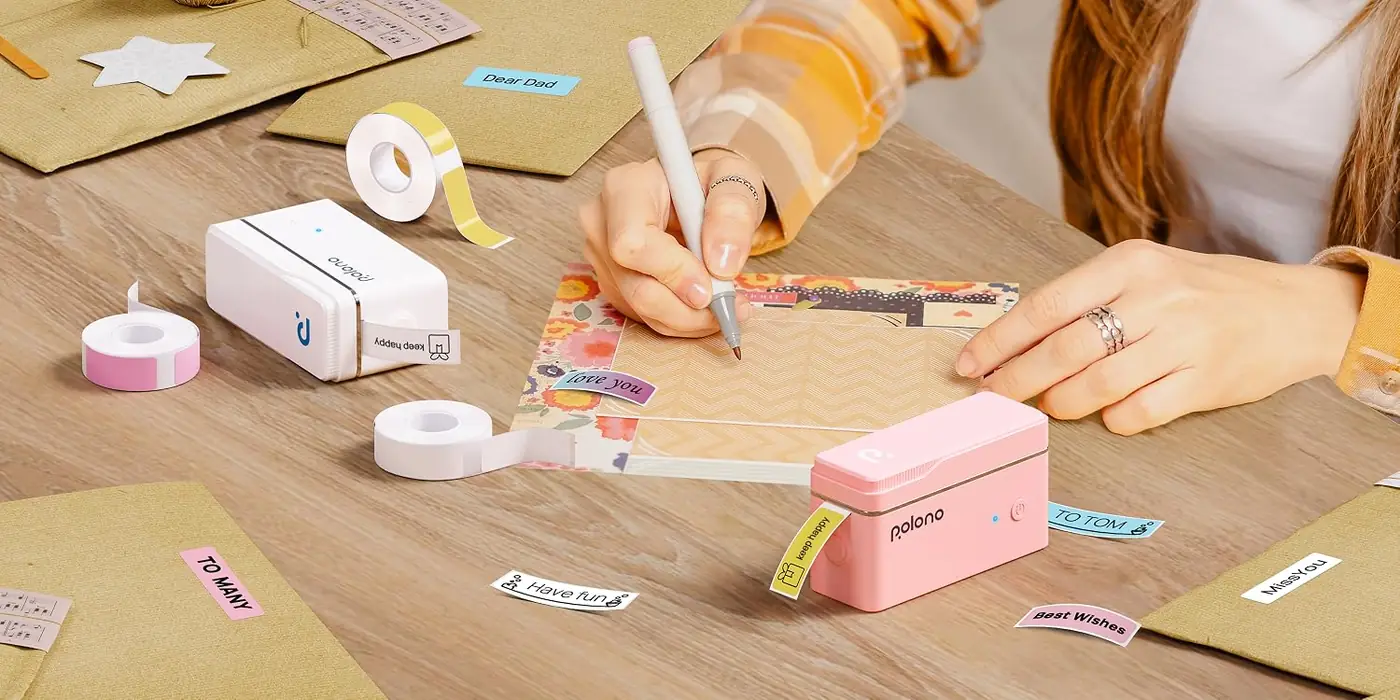
That sentence makes vague preferences testable. “Small” may be enough for a kitchen drawer or supply cabinet. A maintenance cart may also require protection, spare media, and independent controls. A shared office workflow may depend less on carrying distance and more on whether several people can recover the same template.
Use these questions to set the portability requirement:
- Where will labels be designed, printed, and applied?
- Must the operator carry a phone, cable, charger, spare battery, case, or extra roll?
- Can the job pause if the phone is unavailable or the app cannot connect?
- Does the required label size and material exist for the device?
- Can another person reproduce the same label later?
The answers describe the workflow that must be portable. They also prevent a compact enclosure from receiving too much weight in the decision.
Choose the Control Path First
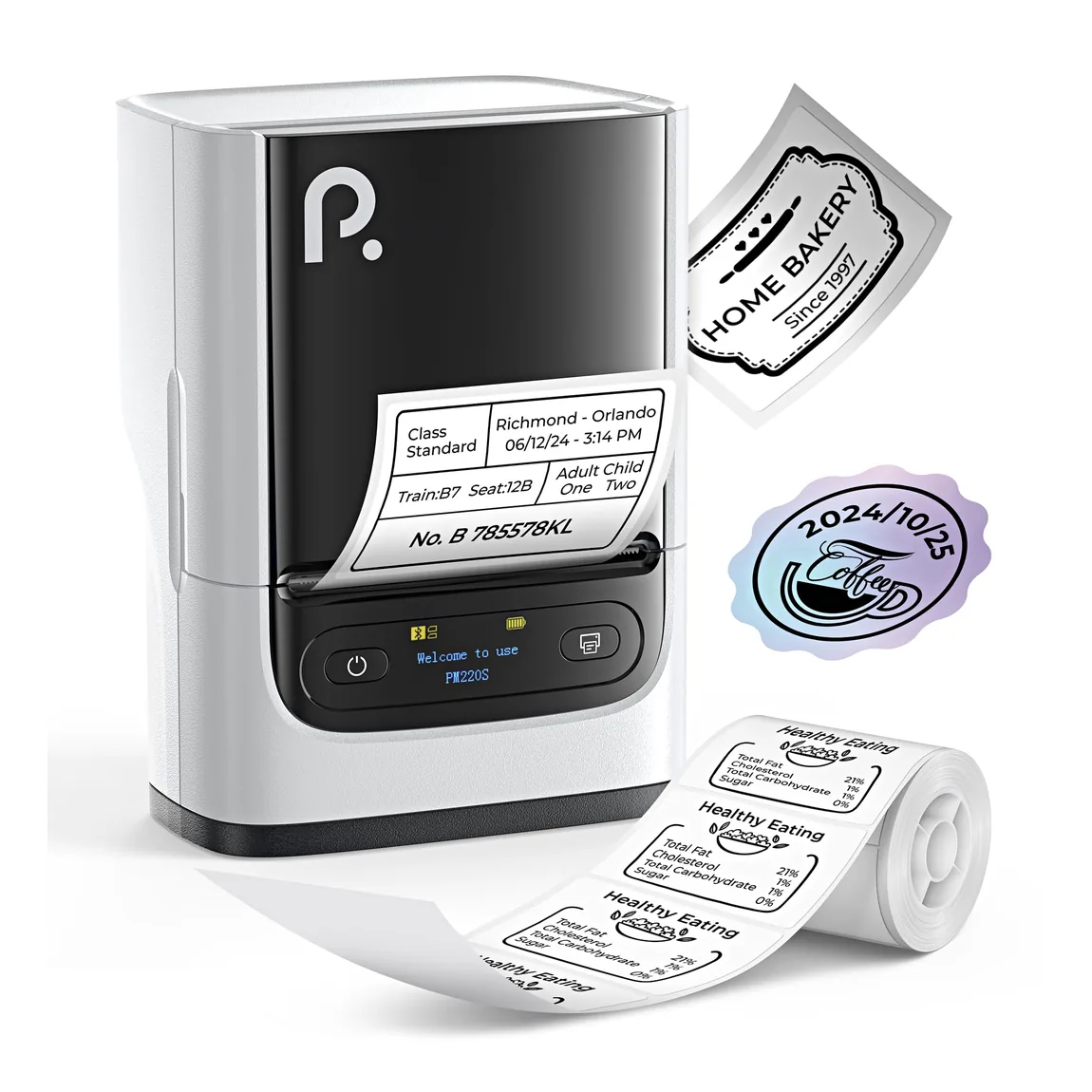
Portable label makers can use different control paths. Product documentation shows both control paths in current use: an app-controlled Bluetooth unit can rely on a smartphone for label creation, while a standalone unit can use a built-in keyboard and screen. This establishes the distinction without making either approach universally better.
An onboard interface can be attractive when the printer must work without borrowing a phone or when short, one-off text labels dominate. Its tradeoff is the space and input limits of the printer itself. An app-controlled workflow can make longer text entry, previews, saved designs, or data import easier to evaluate, but it also adds a phone or tablet and its software state to the operating chain.
Control-path comparison
| Decision factor | Built-in keyboard and screen | App-controlled Bluetooth |
|---|---|---|
| Essential control device | Printer itself | Printer plus a supported phone or tablet |
| Best question to ask | Can the onboard editor create the required label efficiently? | Does the current app complete the required design-and-print workflow on every planned device? |
| Main dependency to test | Keyboard, screen, menus, template storage | App availability, OS support, Bluetooth permissions, account and offline requirements |
| Handoff test | Can another operator use the printer and recover the design? | Can another authorized device access or recreate the design and connect reliably? |
| Field test | Create and print without a separate smart device | Repeat pairing, permission, design, and print steps in the actual location |
Choose the control path before comparing convenience features. If direct entry is essential, an app-only workflow may be a poor fit even when the printer is very compact. If complex layouts or reusable designs matter, the limitations of an onboard editor deserve a realistic trial.
Bluetooth Is Only One Part of Compatibility
Bluetooth answers a narrow question: whether the printer and another device have a supported wireless connection path. It does not by itself answer whether the required app is available, whether the current operating system is supported, which permissions must be granted, whether an account is needed, or whether the workflow works without internet access.
For apps targeting Android 12 or later, current Android guidance assigns runtime permissions to Bluetooth scanning and communication with paired devices; the system can prompt the user to allow access to nearby devices. This platform behavior was checked on September 14, 2026.
Apple’s current support guidance likewise explains that an app using Bluetooth functions may request permission and that the user can later allow or revoke access in device settings. This guidance was checked on September 14, 2026.
Those platform rules support a broader buying precaution: verify the complete app-to-printer path rather than treating “Bluetooth” as a compatibility guarantee. Offline behavior, account requirements, and supported OS versions remain product- and app-specific checks, so they belong on the buyer’s current-product checklist.
Before buying, test or confirm:
- The exact app name and its official publisher.
- Availability in the app store used by every planned phone or tablet.
- The supported operating-system versions.
- The permissions needed for discovery and connection.
- Whether initial setup, normal printing, template access, and reprinting require an account or internet connection.
- Whether multiple users can work without repeatedly removing and re-pairing devices.
- How designs are backed up, transferred, or recovered after a phone replacement.
This checklist should be repeated close to purchase because apps and operating systems change. A review written for an older software version cannot establish the current workflow.
Match the Label Media to the Job
The label—not the printer—is the output the reader actually needs. Start with the object or surface, then define the label’s maximum and minimum dimensions, shape, text density, required information, material, color, and exposure conditions.
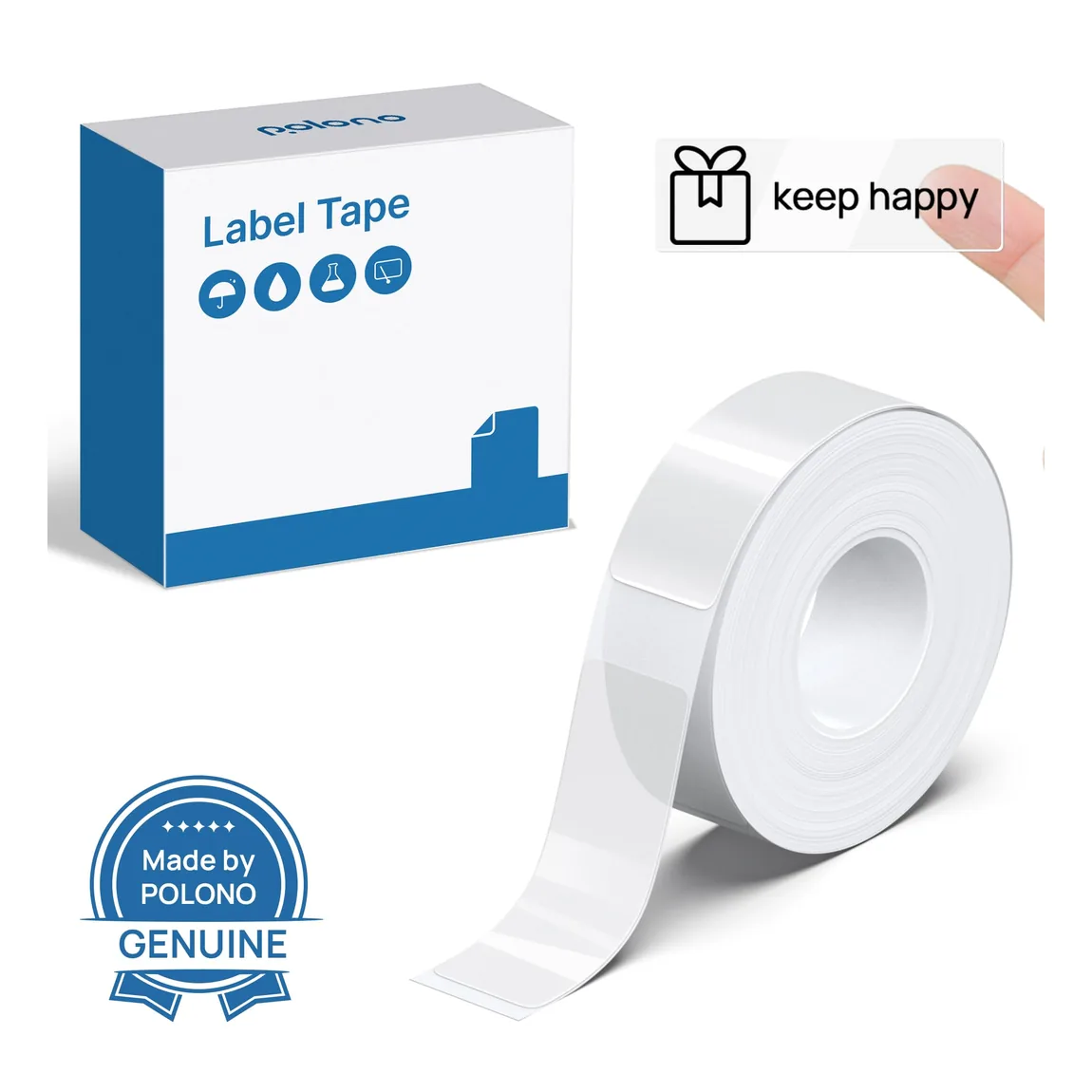
Media catalogs can distinguish supplies by compatible device, dimensions, format, material, color, and intended task; a roll or sheet made for one device should not be assumed to fit every thermal printer. The general buying action is therefore to record the exact compatible media identifier rather than relying on a phrase such as “thermal labels.”
This media-first check also helps separate adjacent product classes. Compact organization labels, wide shipping labels, and full-page portable document output use materially different formats; treat them as separate workflow categories rather than assuming they are interchangeable.
Use a sample of the actual label stock on the actual surface. Check whether the available print area fits the required text or code, whether the label can be applied cleanly, and whether the result remains acceptable under the real handling conditions. This guide does not supply a universal adhesion, water-resistance, or durability promise; those properties need evidence for the exact media and use environment.
For future reorders, save:
- the exact media name or SKU;
- label dimensions and shape;
- material and color;
- printer compatibility;
- supplier and pack quantity;
- a photo or approved sample of the finished label.
Test Power, Carrying, and Field Setup
Power and carrying requirements belong inside the portability test because the working setup can include more than the printer. The guide’s framework asks the buyer to account for the control device, charging equipment, media, protection, and intended work location together.
Avoid comparing a category-wide “battery life” number. Runtime depends on the exact device and how it is used, and no universal figure should be applied across the category. Instead, translate the job into test conditions:
- How many labels must be printed between charging opportunities?
- Is the battery built in, replaceable, or dependent on a proprietary charging arrangement?
- Can the printer be charged from the power sources available in the work location?
- Does the operator need a case, belt clip, spare media, cleaning items, or a phone mount?
- Can the display or phone screen be used comfortably in the expected light and weather?
- How long does setup take after the kit has been packed and carried?
When a manufacturer provides a runtime or durability rating, treat it as a product-specific statement with stated test conditions. Confirm that it applies to the exact model and then reproduce a smaller version of the real job before relying on it.
Plan for Reprints and Resupply
The first print is only one point in the ownership cycle. A useful setup must also make the approved design recoverable, let another person repeat the job, and make the same compatible supply identifiable when the original roll is empty.
The practical workflow test in this guide includes saving and reprinting a label because app-controlled workflows may include previews and reusable data-entry features. Test those steps in the exact app rather than assuming every system handles templates in the same way.
It also includes a reorder check because exact device compatibility and media format are material selection factors.
Use this combined create-to-reorder method as a practical screen, not as a formal industry protocol.
Create a simple handoff record:
| Record | What to capture |
|---|---|
| Label purpose | Where the label is used and who approves it |
| Template location | App, device, shared folder, or documented recreation steps |
| Printer setup | Control device and connection method |
| Media identity | Exact compatible supply, dimensions, material, and color |
| Finished example | Approved photo or physical sample |
| Reprint owner | Person or role responsible for repeating the job |
| Reorder trigger | Minimum remaining quantity or scheduled check |
This record is especially useful for shared spaces. If the only person who knows the app, template location, or media code is absent, the printer is not yet part of a repeatable workflow.
Run a Seven-Step Test Before You Buy
Seven-step pre-purchase test
- Create: Reproduce one real label at its intended size. Include the longest text, smallest readable elements, symbols, or codes the job normally needs.
- Connect: Pair or connect from every device that will be used. Check the current app, OS version, permissions, account steps, and the planned network conditions.
- Print: Produce a small batch, not only one label. Observe setup time, alignment, cutting, and any repeated steps without converting the observation into a universal performance claim.
- Apply: Put the exact media on the actual surface. Check fit and handling under the intended conditions rather than relying on a broad material label.
- Save: Close the app or power down the printer, then recover the design from the location another operator would use.
- Reprint: Ask another intended user to repeat the job from the saved instructions and approved sample.
- Reorder: Identify the exact compatible supply and confirm that the same size, format, material, and color can be ordered through the planned purchasing route.
This test is a practical screen for the chosen setup; it is not a certification or a guarantee. A failure should produce a specific decision. For example, a permission problem calls for a software check, an unavailable refill calls for a media or supplier change, and an output that cannot fit the required label calls for a different printer class.
Use a short failure log:
| Step | Pass condition | Observed issue | Next action |
|---|---|---|---|
| Create | Required content fits the label | ||
| Connect | Every planned device can complete setup | ||
| The required sample batch completes | |||
| Apply | Exact media fits the real surface and use | ||
| Save | Design can be recovered | ||
| Reprint | Another operator can repeat the job | ||
| Reorder | Exact compatible media is identifiable |
Know When You Need a Different Printer Class
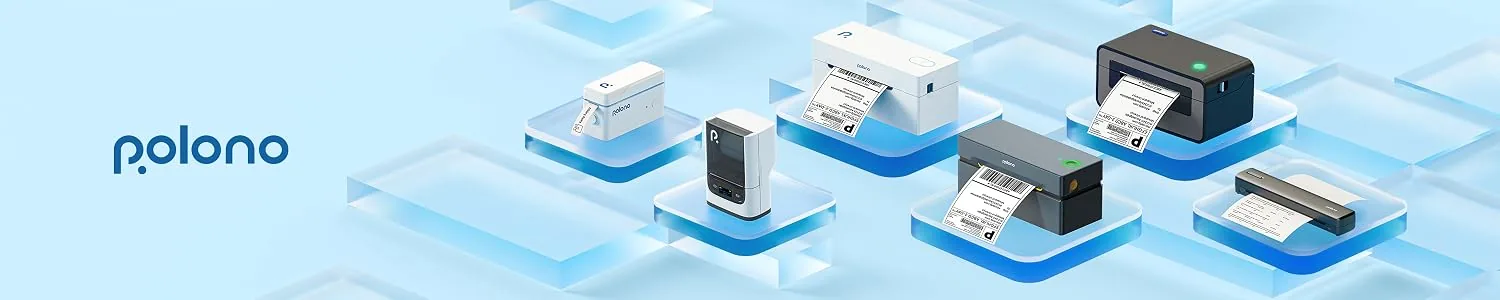
Compact organization labels, dedicated shipping labels, and portable document output should be routed as different workflows when their required media and output formats differ. This is a practical selection boundary based on required media and output, not a universal technical taxonomy.
A compact label maker may be the wrong class when the primary job requires wide carrier shipping labels, full-page documents, a media type not offered for the device, production volumes beyond the tested workflow, or specialized compliance and durability evidence that has not been established for the exact setup.
The same reasoning works in the other direction. A shipping-label printer can be appropriate for a packing station yet unnecessarily large or inflexible for small shelf, cable, bin, or name labels. A portable document printer can move between locations but still be the wrong format for adhesive organization labels.
The correct response to a mismatch is not to force the original category to fit. Rewrite the job statement, identify the required output format, and compare devices built around that format. Readers whose main task is parcel fulfillment can continue with a dedicated shipping-label-printer workflow; readers comparing small organizational labels should stay within the compact label-maker category.
Frequently asked questions
Does Bluetooth guarantee that a label maker will work with a phone? No. Bluetooth is only one part of the path. Confirm the current app, supported OS version, required permissions, account behavior, and the complete print workflow on the intended device.
Can one portable device handle every label format? No. Match the exact printer to the required dimensions, media format, material, and task, and treat compact labels, wide shipping labels, and document output as different workflows when their formats differ.
Will a Bluetooth label maker work without internet access? That depends on the exact app and workflow. Do not assume category-wide offline operation; test setup, design access, printing, saving, and reprinting under the planned network conditions.
What should be checked before taking a label maker into the field? Test the complete kit: printer, control device, power, charger, compatible media, protective or carrying accessories, setup time, and the real work location. Use product-specific evidence for runtime or durability rather than a category-wide promise.
Make the Decision From the Workflow
The most useful portable label maker is not the one with the longest feature list. It is the setup that can complete the required label job, in the required place, with controls, software, power, media, and repeatability that the user has actually verified.
Start with the job statement. Choose the control path. Check current app and platform requirements. Record the exact media. Test the full kit away from the desk. Save and hand off the design. Reorder the same supply. If any essential step fails, change the workflow or choose a different printer class before buying.